![shipcalm-logos_all_white-2.png]](https://help.shipcalm.com/hs-fs/hubfs/shipcalm-logos_all_white-2.png?height=40&name=shipcalm-logos_all_white-2.png)
Managing logistics with carriers that aren't natively integrated into Shopify can be a challenge. If you are using UniUni for your deliveries, you likely noticed that while the tracking number appears in Shopify, the Tracking URL remains empty.
This guide explains how we use Shopify Flow and the Shopify Admin API to automate the generation of UniUni tracking links, ensuring your customers always have a direct way to track their packages.
Why is this Automation Necessary?
Typically, when an order is fulfilled in ShipStation, the carrier sends a carrierCode that Shopify uses to generate a tracking link. Because UniUni is not yet recognized by Shopify or ShipStation, no tracking URL is generated automatically.
Without this workflow, customers receive a tracking number but no clickable link to see where their package is.
-
Infoplus sends the tracking number to ShipStation.
-
ShipStation pushes that data to Shopify.
-
Shopify recognizes the number but doesn't know where to "point" the customer to see their tracking status.
This guide explores two effective methods to bridge this gap, ensuring your customers can track their packages with a single click.
- Modifying the Shipping Confirmation Email Template
- Automating with Shopify Flow & Admin API
Pro Tip: If you frequently use multiple regional carriers, Method 2 is significantly more scalable. It ensures that your Shopify "Order Status" page (the page customers visit after clicking the email) also contains the working link, providing a consistent experience across all touchpoints. Note that Method 1 is strictly used for the automated emails sent to customers during fulfillment—usually where the template contains a "Track your package" button or link. This method will not fix broken or missing links inside your Shopify Admin panel or on your store's native tracking pages.
Which Method Should You Choose?
| Feature | Shopify Flow (API) | Email Template Edit |
| Effort | Medium (Requires Flow app) | Low (Simple code edit) |
| Customer Experience | Excellent (Works everywhere) | Good (Works in email only) |
| Internal Data | Updates Shopify Admin data | Does NOT update Admin data |
| Cost | Free (on Shopify Plus plans with Flow) | Free |
💡Method 1: Modifying the Shipping Confirmation Email
If you prefer not to mess with APIs or Flow, you can hardcode the logic directly into your customer-facing notifications. This doesn't change the data in the Shopify Admin, but it solves the problem for the customer.
If you prefer a direct, customer-facing fix, you can modify the Shipping Confirmation email template to bypass Shopify’s default link generation and hardcode a UniUni-specific tracking URL. This approach does not alter any data in the Shopify Admin, but it does ensure that customers always receive a functional tracking link in their email.
In most Shopify themes, the Shipping Confirmation email includes a standard “Track your package” button. By inserting custom Liquid logic, you can route that button directly to the UniUni tracking portal whenever a UniUni tracking number is present.
To configure this:
- In your Shopify Admin, go to **Settings > Notifications**.
- Select the **Shipping Confirmation** notification.
- Click **Edit code**, then add the UniUni-specific Liquid conditions and URL logic around the existing tracking button so that it redirects customers to the correct UniUni tracking page when applicable.
Because the changes required here need to be carefully reviewed and tested before any code is deployed, our team can assist with implementation and quality assurance to ensure your customers experience a smooth, reliable tracking experience. Kindly reach out to our support team for assistance.
💡Method 2: Automating with Shopify Flow & Admin API
This is the "set it and forget it" technical solution. By using Shopify Flow, you can trigger an action every time a fulfillment is created to inject the correct URL via the Shopify Admin API.
The UniUni workflow triggers Shopify’s Shipping Update email. You’ll want to make sure no additional fulfillment notifications are being sent to customers. By default, Shopify sends a Shipping Confirmation email, so it’s important to disable that notification before turning on this workflow to prevent duplicate shipping emails. Kindly reach out to our support team for further assistance.
-
The Shipping Confirmation email is sent automatically when the order is marked as fulfilled in Shopify. This is the default design, but usually it is not triggered when manually marking the order in the system.
-
The Shipping Update email is sent if the tracking information gets modified.
How the Workflow is Triggered
The automation begins once the physical shipping process starts. Here is the data chain:

Condition Logic: Identifying UniUni Shipments
While this workflow is specifically optimized to fix missing UniUni links, it is also designed to handle standard carriers (like UPS, FedEx, or USPS) without disruption. Shopify natively recognizes these established carriers and automatically generates their tracking URLs.
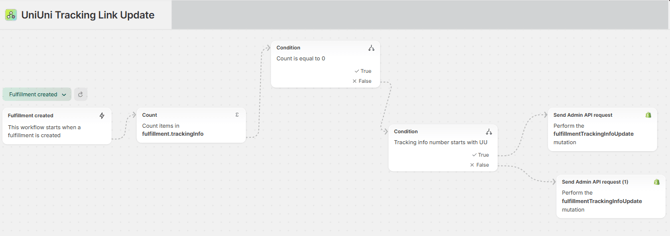
Once the workflow is triggered, it checks the following:
-
Action: Count Tracking Info. The workflow first counts the records in fulfillment.trackingInfo (URL, carrier, and tracking number) to confirm whether any tracking data already exists.
-
Condition: Count is Equal to 0. The workflow checks whether tracking information is present.
- Condition: Tracking Number Starts with "UU". The workflow identifies UniUni shipments by checking if the tracking number begins with the "UU" prefix.
- If True: The shipment is confirmed as UniUni, and the flow proceeds to the first API update.
- If False: This means that the tracking URL already exists for that fulfillment, and the workflow proceeds to the second API update.
Using Liquid to Dynamically Update Data
The Admin API requires specific data that changes for every order. We use Liquid templating to pull this information in real-time:
-
Fulfillment ID: Extracted directly from the order data at runtime.
-
Tracking Number: Captured from the fulfillment trigger.
-
URL Construction: The workflow builds the UniUni tracking URL by appending the tracking number to the UniUni tracking base link.
Once all required data points are validated, the workflow applies the following updates.
- Final Action for UniUni: Send Admin API Request. Since Shopify Flow does not have a "native" button to update tracking info, we use the Send Admin API request action. Specifically, we target the
fulfillmentTrackingInfoUpdateendpoint.
-
Dynamic Linking: Using Liquid templating, the workflow inserts the fulfillment ID and constructs a clickable UniUni tracking URL.
-
Data Update: This action explicitly sets the carrier to UniUni and attaches the valid tracking link so it is visible to the customer on their order status page.
Payload sent to Shopify Admin API:{
"fulfillmentId": "{ { fulfillment.id } }",
"trackingInfoInput": { "company": "UniUni",
"number": "{ % for trackingInfo_item in fulfillment.trackingInfo % } { { trackingInfo_item.number } } { % endfor % }",
"url": "https://www.uniuni.com/tracking#tracking-detail?no= { % for trackingInfo_item in fulfillment.trackingInfo % } { { trackingInfo_item.number } } { % endfor % }"
}
}
-
- Final Action for Other Carriers: Send Admin API Request.
- Tracking Validation: The workflow still proceeds to a Send Admin API Request, but it does so using the existing
trackingInfoprovided by Shopify. Because Shopify already "knows" these carriers, the API request simply confirms the existing data rather than generating a new link from scratch.
Payload sent to Shopify Admin API:
{
  "fulfillmentId": "{ { fulfillment.id } }",
  "trackingInfoInput": {
    "company": "{ % for trackingInfo_item in fulfillment.trackingInfo % } { { trackingInfo_item.company } } { % endfor % }",
    "number": "{ % for trackingInfo_item in fulfillment.trackingInfo % } { { trackingInfo_item.number } } { % endfor % }",
    "url": "{ % for trackingInfo_item in fulfillment.trackingInfo % } { { trackingInfo_item.url } } { % endfor % }"
  }
}
- Tracking Validation: The workflow still proceeds to a Send Admin API Request, but it does so using the existing
The Result
Once the workflow is active, the manual gap is closed.
-
Carrier Set: The fulfillment carrier is explicitly set to "UniUni."
-
Tracking Preserved: The original "UU" tracking number remains.
-
Link Generated: A valid, clickable UniUni tracking URL is assigned.
Once the workflow successfully identifies a UniUni shipment and updates the tracking URL via the API, it automatically triggers the standard Shipping Update email in your Shopify store—just as it does for all other recognized carriers.